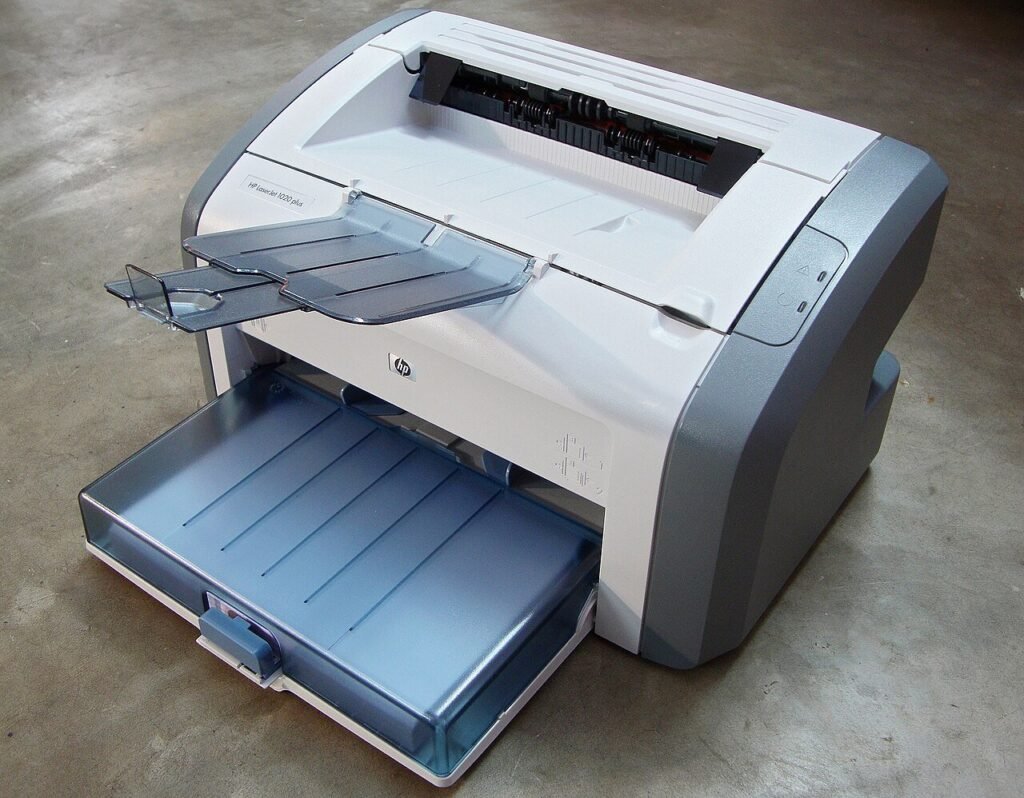
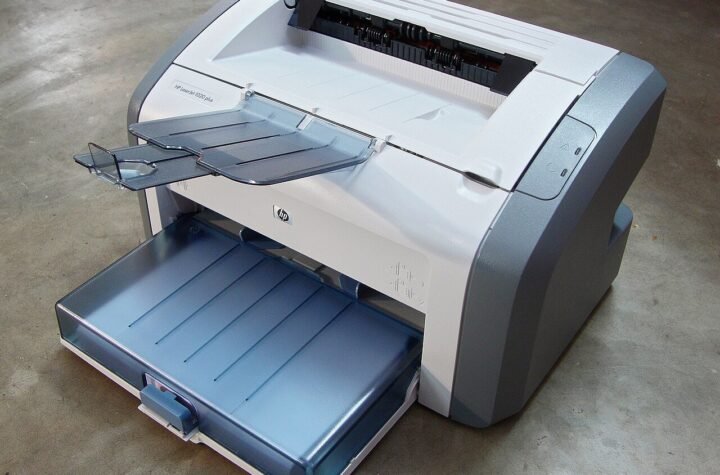
Photo: Joydeep, Wikimedia Commons, CC BY-SA 3.0
You hit Print. The printer hums, thinks about it, and then does absolutely nothing. You check the paper. You check the ink. You unplug it, plug it back in, and give it the same look you’d give a dog that just ate your sandwich. Still nothing.
Before you drag that printer to the curb, here’s the twist: it might not be the printer at all. Microsoft has confirmed that its November 2026 Windows security updates can make certain documents fail to print, and the culprit is something you literally can’t see. Here’s what’s going on, who’s affected, and how to get your pages printed while Microsoft works on a real fix.
What Microsoft actually confirmed
Microsoft released its monthly batch of Windows security updates on Tuesday, November 10. Within days, the company warned in a service alert that those updates can break printing for some documents. BleepingComputer reported the alert on November 13, quoting Microsoft directly: printing “might fail for documents containing images rendered with a height or width value of zero at the selected printing resolution.”
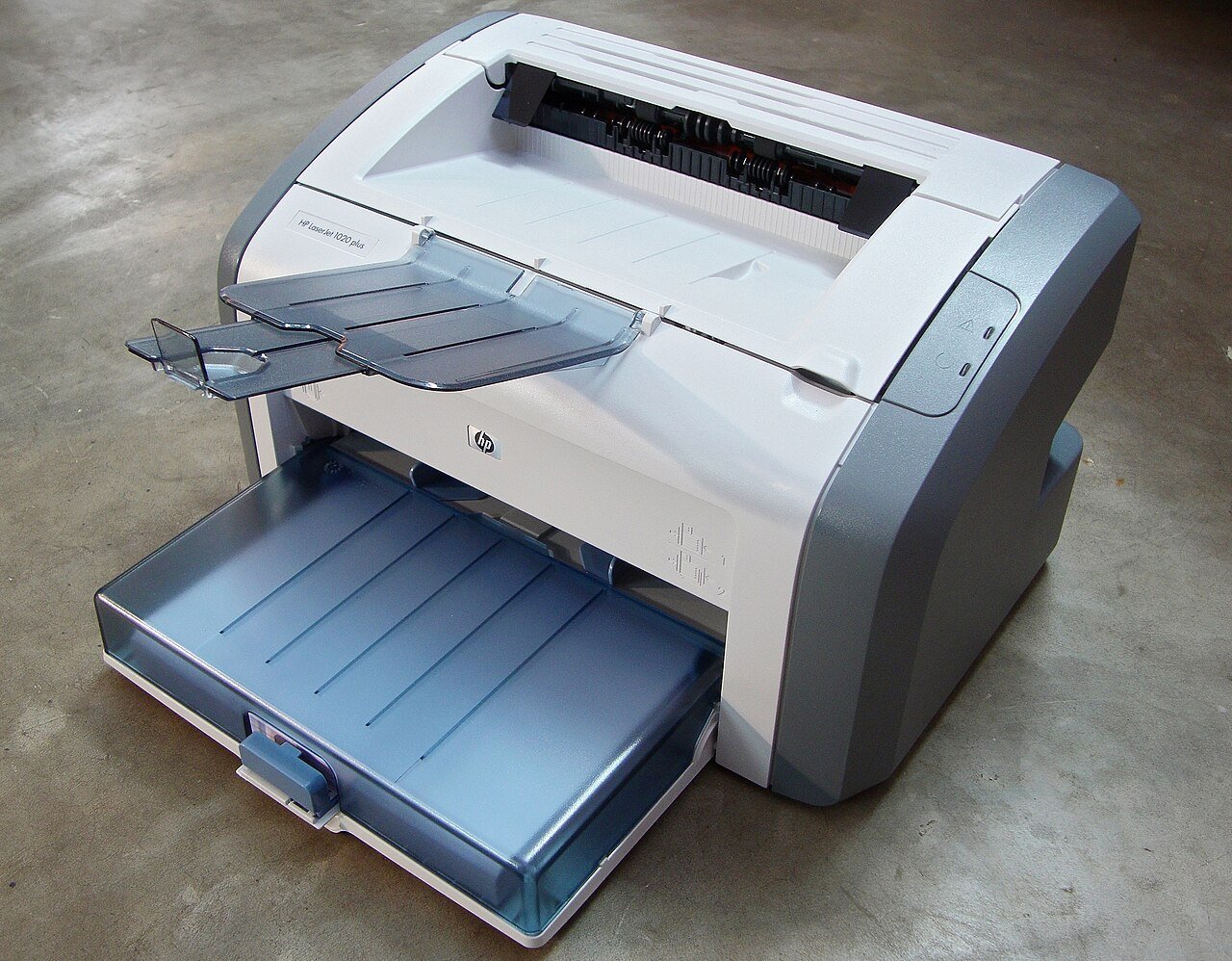
In plain English: if a document has a picture that is zero inches tall or zero inches wide, Windows may choke when you try to print it. Microsoft says it has mostly seen this with Microsoft Word documents, but other programs can be affected too. The bug hits Windows 10 and Windows 11 PCs, plus Windows Server 2016 and newer, so it reaches home computers and office machines alike.
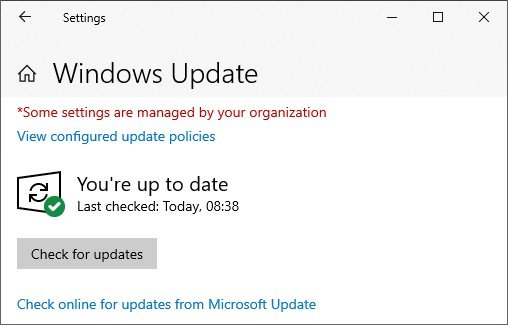
According to the patch-tracking site Thank You for Patching, the alert covers every November update, including KB5132061 for most Windows 11 PCs, KB5131087 for Windows 11 version 23H2, and KB5131096 for Windows 10 computers still getting extended security updates. As of Sunday, November 15, Microsoft says it is still investigating and has not released a fix or an official workaround.
Wait, how does a picture have zero size?
Great question, and the answer is a little sneaky. Lots of documents carry invisible images you never added yourself. Microsoft explained that they can be used as a hidden watermark, as an anchor that keeps a page layout from sliding around, or they can be dropped in by programs that create documents automatically, even when there’s no actual graphic.
Think of it like a ghost in your filing cabinet. You can’t see it, it doesn’t do anything useful, but it’s in there, and this month it’s rattling chains at your printer. That’s why, as How-To Geek pointed out, a document can look perfect on your screen and still refuse to print.
The good news is that most documents don’t contain these ghosts. So this usually shows up as one stubborn file or one company template that won’t print, while everything else works fine. If nothing at all will print from any program, you’re more likely dealing with an ordinary printer or connection problem.
How to print anyway: the practical fixes
Until Microsoft ships a repair, here’s what people who fix computers for a living are recommending. Start at the top and work down:
- Test with a different document. Print a plain web page or a simple new Word document with a single sentence. If that prints, your printer and its connection are fine, and the problem is inside that one file.
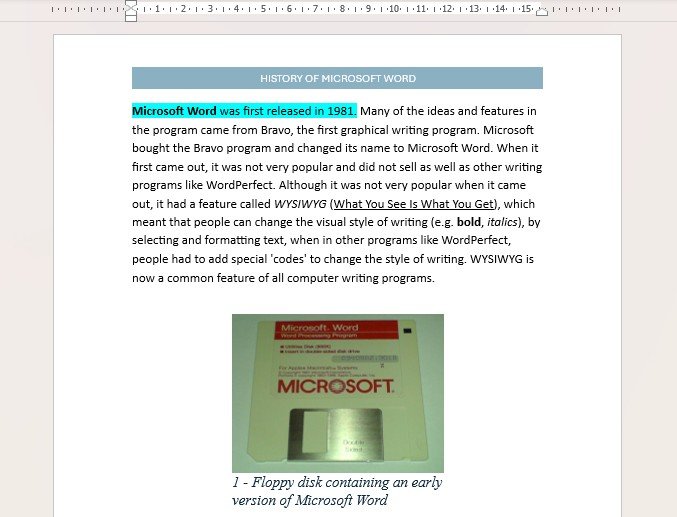
- Hunt down the invisible pictures. In Word, go to the Home tab, click Select on the far right, then choose Selection Pane. A list of every object in the document appears, including ones you can’t see. Click each one, and either delete anything that isn’t supposed to be there or give it a real height and width. Don’t forget to check the header and footer, since watermarks love to hide there.
- Save it as a PDF, then print the PDF. In Word, use File, then Save As, and pick PDF as the file type. Then open that PDF and print it. Several repair guides suggest this can sidestep the problem. It isn’t an official Microsoft fix, so treat it as worth a try rather than a guarantee.
- Fix the template, not just the file. If every document made from the same company letterhead or form fails, the ghost probably lives in the template. Clean it once and you’ll stop fighting the same battle every morning.
- Keep the update. It’s tempting to uninstall November’s update and call it a day. Patch-tracking experts are advising against that unless printing one particular document is truly critical, because these updates close real security holes. Our Patch Tuesday update plan explains why skipping security fixes is a bad trade.
The other November update headaches
Printing isn’t the only thing this month’s updates have tripped over. PCWorld reported that some PCs couldn’t install the update at all, getting stuck in a loop with error codes like 0x800f0993, 0x800f0989 or 0x80070306. Microsoft said that only affects machines that installed the optional October preview update, known as KB5127936. Neowin reported that Microsoft is sending an automatic fix in the background, so you shouldn’t need to download anything special. Give the computer a restart and let Windows Update try again.
Microsoft also confirmed an activation bug with error 0x80041008 that shows up when technicians run certain licensing commands. That one mainly matters to businesses, and Microsoft says PCs that are already activated stay activated. If you’re a home user, you can file that one under “not my problem.”
And yes, if this feels familiar, it’s because it is. In 2025, Windows updates caused USB printers to spit out random gibberish and broke the Print to PDF feature, according to BleepingComputer. Printers and Windows updates have a relationship best described as “it’s complicated.”
Why it matters to you
Lots of people will hit this at exactly the wrong moment: printing a boarding pass, a tax form, a school permission slip or the church bulletin ten minutes before it’s due. Knowing the cause saves you money and frustration. You won’t buy a new printer you don’t need, and you won’t waste an hour reinstalling drivers for a problem that lives inside one document.
It’s also a good reminder that monthly updates occasionally go sideways. The answer isn’t to stop updating, since that leaves the door open to hackers. The answer is to have a backup plan, so a bad update is an annoyance instead of a disaster. That means two simple things: a recent copy of your important files, and a recovery drive that can get Windows running again if an update ever really goes wrong.
Microsoft posts known problems and fixes on its Windows release health page, and the repair for this printing bug will arrive through Windows Update when it’s ready. Check for updates every few days this week.
Make a recovery drive while everything works
Windows can build its own rescue USB stick. Type “Create a recovery drive” into the Start menu search, plug in a flash drive you don’t mind erasing, and follow the steps. It takes a while, so start it before dinner. If you’d rather watch someone walk through making a bootable flash drive, I made a video on exactly that.
Helpful gear
You don’t need to buy anything to fix the printing bug itself. But if this month’s update mess has you thinking about a safety net, these are the two things I’d keep in the desk drawer:
- SanDisk Ultra Flair USB 3.0 flash drive: cheap insurance for turning into a Windows recovery drive, so a bad update or a PC that won’t start doesn’t turn into a weekend-long crisis.
- Seagate Portable 2TB external hard drive: plug it in, copy your photos and documents before big monthly updates, and stop worrying about what Patch Tuesday breaks next.
As an Amazon Associate I earn from qualifying purchases.
The bottom line
If a document suddenly won’t print after this month’s Windows update, don’t blame the printer just yet. Look for invisible pictures, try printing a PDF copy, and keep checking Windows Update for Microsoft’s fix. Your printer may still be plotting against you, but this time it has an alibi.
Got a tech problem you want me to dig into? Send it my way through the Contact Us page.
Want quick fixes like this in under a minute? Check out my YouTube channel for daily tech tips.
Sources
- BleepingComputer: Microsoft says November security updates cause printing issues (Nov. 13, 2026)
- How-To Geek: Word printing problems? Microsoft’s November Windows updates are the likely cause (Nov. 13, 2026)
- PCWorld: Struggling to print after the Windows update? Here’s what’s causing it (Nov. 13, 2026)
- Windows Report: Microsoft confirms November 2026 Windows updates are causing printing failures (Nov. 14, 2026)
- Thank You for Patching: November Windows updates, printing fails on zero-size images (updated Nov. 13, 2026)
- Neowin: Microsoft Weekly, November Patch Tuesday updates and more (Nov. 14, 2026)
- Microsoft: Windows release health



More Stories
AI Chatbots Are Sending Holiday Shoppers to Fake Stores. Here’s the 60-Second Check Before You Pay
Microsoft’s Outlook Meltdown Is Over. The Fake ‘Restore Your Emails’ Scam Is Just Getting Started
Starlink Is Changing Prices by Neighborhood. Some Customers Are Cutting Their Bill Just by Asking Grok